Wednesday, December 31, 2008

NEW Grey Frame By Me

Now I am not that great at this stuff but I was making a tag
and put some stuff together with scrap things snagged over time and
well it became a frame lol.

Nothing special but hey its a start right?
Enjoy if you use, and I would love comments if you download so I know its being snagged at least please!! TY
Download here


Tuesday, December 16, 2008

Making An Avatar Tutorial

Ok for this tutorial, I got this one from a challenge in a group, the one that explained how to do it, had me confused and well, I stopped and just went my own and revised it to my likeing and hopefully better to understand, I will completely give credit to the link.

Supplies need
All in supplies here
Credit to this site here for the idea of my tut.
open up a blank image of 100*100
ok then open a 41*101 and set it aside for now
then in the 100*100 one,
take your picture you are using and paste as a new layer
once that is pasted, if its too big and you can't use it as is pasted,

i resized once with 40% smartsize,
all layers not checked,
on top on psp you will see adjust, go there, then you will see when the menu pulls down, brightness and contrast
find the one that says histogram stretch
just click it and it does it for you automatically
then under adjust again, you will find automatic color balanceopen that up
strength= 72 and temperature= 4639, UNLESS you want to fool around and do it your own number for the temp merge visible both layers
once its merged, on top of psp you will see layers, click that and you find duplicate,

click that once
once you duplicate it once, do it one more time
ok, on the materials again, you will see 3 layers, merged, copy of merged 1 and copy of merged 2, right?ok, click the middle layer on top of the merged
ok, back to adjust, then you will see blur, when that opens, click the blur one once, you won't see it being done but its doing it lol
then back on the materials with the layers, the one that has 100, lower that to about 54%same layer
then click the top copy layered and you will see were it says normal
click on the normal and find the soft light option ok, merge visible again
set this image aside for now
take your 41*101 image we made
same picture too
take the picture you have and paste it into the 41*101 as new layer
take your mover tool

and move the pic around to the part you want showing
depending on the size, i did mine once at 40% smartsize, all layers NOT checked
if that makes it too small adjust the number size
then use your move tool (hit m on keyboard) and move the layer around to what you want showing
once happy, merge visble both layers
repeat the same step for the brightness and contrast, under adjust, once there, click the histogram stretch
then back to adjust and click on automatic color balance, same settings as before
merge visible both layers
this part is optional

Mirror if you want, depending were your placing the 41*101 image
back to layers on top of psp and click that,
find duplicate again, click it, do it again, to have 2 layers
click the middle layer
back to adjust, then same blur as before
and lower it down to 54% again in the material boxes
then top layer, click on that, then click on normal and find soft light again and click on that. Once you finish that, merge visble again.
repeat the brightness and contrast again, same histogram stretch one
automatic color balance, same settings as before
copy this image
once it copied, bring your 100*100 back up and paste as new layer on there
ok now this part is totally on how your images look.
your first layer, the 100*100 one, move that slighty over, to either the right or left a littleto where it isn't overlaping depending were your going to place your 41*101 one just move it to what you want to show ok, now back to the 41*101 layer
move this layer some so its not overlapping your other image, enough so no background will show and line them up.
if you need the other one moved, do it, so it lines up nice.
merge visble
Find your pen tool, click that
pick a color that goes with your image but a tad darker
line style is solid, make sure its on that, width = 3.00
once that is set, click back to your image, hold shift down and draw a line were the two images meet, then convert to raster
make a new layer
now the color you picked, flood fill with your color you picked on the new layer
add new raster layer
flood fill this with your next color, which should be light
on your DARK color, click on normal in this layer and change it to screenon your LIGHT color, change the normal to hard light
now click shift D together so your image duplicates as allset aside your originaland stay on the duplicate one
merge visble the duplicate image all layers together once that is done,
click shift T together
then do the same automatic color balance, same settings
copy the image we just fixed
click your other 100*100
select the light color layer, paste it as new layer on there
so its between the dark color and then light color is below it
change that layer from normal to Luminance legacy
make a new raster layer again
pick another color, that goes with your others but not too dark and not too light,
does NOT have to be gradient
I used a solid color. Flood fill the new layer with this color.
change this layer from normal to screen
after you change it to screen, click this layer in materials and drag below the dark color
staying on this layer we just dragged, take the brush image you saved, either open it or if its opened, copy it, paste into this layer as paste into selection
change the brush/color layer from normal to screen
Lower this layer to about 50, play around to what you like
ok copy the border pic from supplies
paste as new raster layer on your 100*100 your working on
so its the first layer, we don't move it
change the normal to overlay
play around with any of them till you like it for your colors
merge all layers visble

Font time
i used Trebuchet MS
size 1
no stroke, bold,
anti-alias on sharp, kerning 100
color white unless you want different, this text we won't be able to read,

but it makes it look neat
type out anything you want that goes with the pic
once your done
convert to raster, then add drop shadow with these settings
V&H = 1 Opacity = 93 Blur = 1.00 and color is blk

Add anything else you want and your done :) Hope you enjoy.

Tuesday, December 9, 2008

Live Tutorial

Supplies Needed
1 Graphic of choice
The one I used Here
Elements of Choice (at least 2)
(Ribbon and Bow)
Doodle of choice (just one)
Font Of Choice
Frame By Me Here
Other supplies Here
Word art of choice or one I used by
Kimmy (KLS_WA)
Here
(a little comment doesn't hurt if you download.)
Scrap kit of Choice
The one I used is
Sagittarius PTU kit by Stacey's Designs
and I can't provide it.
You may purchase it at her sites and browse her other great kits.
http://snmcreationz.blogspot.com/
http://www.staceysdesigns.us/

Open new image 650*400
we will resize later
Take the frame I provided
paste as a new layer on your new image we just made
Take your magic wand and click inside the frame
expand by 2
Take your graphic you are using or the one I put in the supplies
choosing your own, makes the tag more of your design :)
paste as a new layer
I resized mine @ 70% smartsize with all layers NOT checked
I did this 3 times,
it depends on your graphic you use or to what you like.
Then use Unsharpen mask with these settings
(this is under adjust then sharpen)
Radius-1.00 Strength-64 Clipping-4
I did this twice
Click invert, then delete, then invert again, select none.
Make sure you bring this graphic below the frame layer.

I then gave my frame layer a drop shadow with these settings
V&H-1 Opacity-100 Blur-3.00 color-blk
Just once.
Then for my graphic again, this is optional, totally up to you.
I used the filter factory J plugin and then toners
and used these settings to give my graphic a little something.
Red- 9 Green-14 Blue- 15
If you do this, I did this twice with the same settings,
I encourge to play around with the settings, have fun with it :)

Time to add stuff to your tag.

Now for the supplies I did provide I will explain how I did those, any other supplies you do use, you can just look at my example and wing it with which ever you use.

Open the live tutorial supplies you downloaded
Take the staple layer and copy. Pase this on your image you just made with the graphic.
I resized mine once @ 40% smartsize and used the same unsharpen settings as before.
I then duplicated once, then merged down together, Just the staples nothing else.
I then duplicated again and flipped once.
Look at my example for placing or place how you like.

In the same supplies take the note book paper layer, copy. Paste this on your image and I resized this layer @ 60% smartsize once, same unsharpen settings as before once.
I added the same drop shadow as I did the frame before.
I duplicated this once, them merged together the 2 layers, then duplicated again and then I flipped it this time and then mirrored. Look at my example for placement or place how you like.

This part of the tag making is up to you.
Take the ribbon of choice you are going to use and paste on your image we are creating.

I resized mine at 60% smartsize, judge your sizing by the ribbon you picked.
Same sharpen settings as before.
I also colored my supplies to match my graphic, you can do the same or leave them as is.

Open up the bow of choice you are using and resize to your liking and place in the top left corner like mine above or to were ever you like :)

The word art I provided or one you picked, open this up, I merged the layers together on the one I used and resized it once @ 60% smartsize once and colored mine white.
I added the same drop shadow as before. Then duplicated it once so it pops out more. Then merged those layers together, just the word art layers.
If using another, please resize it to your liking or what looks best.

Open doodle of choice (if you use one) and paste as a new layer, for the one I used, I resized it once @ 40% smartsize, do to your liking if you want.
I colored mine again to match the tag.
Then added a drop shadow with these settings
V&H- 1 Opacity- 100 Blur- 1.00 color- Blk
Duplicate the doodle once, merge together these 2 layers, then duplicate again. I then flipped it and mirrored to place it on the other side, Adjust so its peeking out just some.

Once you are done and happy with your results, pick a font and add your name or anything else you might want and add any copyright/watermark info and save. Make sure you crop out the excess background or resize the tag to your liking, I cropped mine.

And you are done, I hope you enjoyed the tutorial.

Update

Hello everyone
I've been a bad tutorial writer lol, I haven't had a new one come to me since my last post in October, been so busy with other things.
I am working on one right now tho and it should be posted soon, thanks for understanding and thanks for still being interesting in my tuts.
Happy Holidays!!
Hugs
Kelly

Tuesday, October 28, 2008

Scrap Frame Tutorial

Scrap Frame Tutorial
Written By: KMLDesignz
October 28th 2008

Supplies Needed
Scrap supplies of choice.
Filter Factory J plugin with toners (optional)
1 paper, some elements, 1 ribbon.
Scrap pieces I used are supplies.
Font of choice.
3 Images of Choice, Bigger the better.
Mask supplied
Template 20 from Cheri's bloghttp://WildCreationz.blogspot.com
Supplies Here

Let's Get Started
Open up the supplies given and minimize them for now, take the template and open up that, duplicate it and close out the original, we won't need it anymore.
Delete the watermark layer, Close off the background layer, Delete the light grey squares as we won't need them. Hide the dark square layer.
Hide both left and right rectangles. Use your magic want and click inside the circle frame.
Expand by 9
Take your first graphic of choice and copy and paste as a new layer, resize this down some, so it fits nice in the circle frame, Sharpen using the unsharpen mask with these settings
Radius- 1.00 Strength- 64 Clipping- 4.00
Do atleast twice or which ever looks best for your graphic.
Select invert, then delete and invert again. Bring this layer below your circle frame.
For mine I did the filter factory J plugin with toners with these settings
Red- 16 Green- 14 Blue- 44
I did this 3 times for mine, do this to your liking.
Repeat these steps for the following 2 graphics left for the right and left rectangles.
Give each of the frames a drop shadow with these settings
V&H- 1 Opacity-100 Blur- 3.00 Color- BLK
Merge visble the frames and graphics together.
I resized mine @ 70% smartsize and used the same sharpen settings as before.
Open back up the dark gray square and resize this @ 70% smartsize too.
Open up the paper in the supplies or one of your choice. If using the one I supplied
I colored this to match my tag, you can do the same.
Take your magic wand and click inside the dark gray square, you might need to close out the frames so its fully selected for the square or easier way, click the square layer, select all, float, defloat, copy and paste the paper your using, I sharpened mine once with the same settings as before, you don't have to do this if you don't want to, invert, delete then invert again. Select none.
Add the same drop shadow to this layer but repeat with -1 for the V&H
You can now delete off the dark gray square, we don't need it anymore.
Open back up your merged frame layers.

Time to decorate the tag.
In the supplies, open up the heart layer, copy and paste on your image, I colored it to match my tag, you can leave it as is if you like. I resized this @ 35% smartsize once and used the same sharpen settings as before, place this in the bottom right corner of the tag, look at my sample for placement. Or you can place were you like.
Open up the ribbon I supplied or one of your choice, paste as a new layer on your image. If your using your own, resize to your liking but make sure it fits nicely on the tag like mine above. If your using the one I supplied, resize this @ 15% once, then 75% once, then 85% once, use the same sharpen as before, I colored it to match my tag. You can do the same or leave as is.
Bring this layer below the heart layer but above everything else.
Give this a drop shadow with these settings
V&H- 1 Opacity-100 Blur-3.00 Color- BLK
Take the star layer and paste that onto your image, I resized mine @ 50% smartsize once and colored it to match, You can do this to your liking. Then give it the same drop shadow as the ribbon.
I duplicated this a couple times and placed them in different spots on the tag, look at sample for placement or you can opt out for this part and leave just one on the other end of the ribbon.
Take the notebook paper layer and paste as a new layer on your image.
Resize this @ 50% smartsize once, give it the same drop shadow as before. Duplicate this one, mirror then flip it so its on the other side peeking out, look at sample for placement. Any of the paper peeking out on top just move it down some so the its not showing.
Take the same notebook paper from the supplies and paste as a new layer again, this resize it @ 70% once and add the same drop shadow, rotate this @ 90 to the left and make it peek out some on the bottom of the tag, then duplicate once and flip it so its peeking some out of the top of the tag. Bring all these layers below the frame layer but above the square layer.
You can merge them together so they don't move when adding more supplies. Just make sure its ONLY the notebook papers merged together.
Take the splat layer in the supplies and paste as a new layer, I colored mine to match, you can do the same or leave as is, Resize this @ 65% smartsize once, use same sharpen settings as before and give it the same drop shadow.
I duplicated this so its on the other side, look at sample for placement. I mirrored it once, then flipped it, then mirror again, then flip. and placed it on the top right corner and one in the bottom left corner. Make sure these layers are above the notebook paper but behind the other elements and above the square.
Take the diamond layer and paste as a new layer, I colored mine again to match, you can leave as is or do the same. Resize this layer @ 70% smartsize once, sharpen with same settings as before, I mirrored it then flipped it and placed on the left side, duplicate and mirror so one is on the right side as well, give it the same drop shadow as before. Make sure this layer is above the splats.
Now for this step its pretty easy.
The background layer is white, click on this layer and flood fill this with a color that goes with your tag, Take the mask I provided and apply to this layer. Delete mask raster, then merge group. Resize this layer @ 85% smartsize once, sharpen as before. Then go to effects, texture effects and find texture. Apply the texture named canvas coarse with these settings
Size-26% Shininess-0 Depth- 1 Ambience-0 Smoothness-0 Angle-315 Intensity-50
Elevation-30 Color- white. Apply this once.
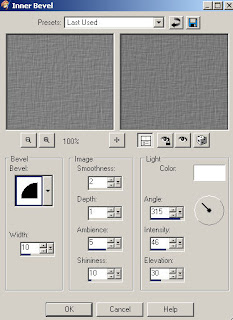
Add an inner bevel with these settings
Bevel #2 Width-10 Smoothness-2 Depth-1 Ambience-5 Shininess-10 Angel-315
Intensity-62 Elevation-30 Color- #c0c0ff
Apply this once.
Go back to effects, Texture effects, then weave and use these settings
Gap Size- 1 Width-4 Opacity-10 Both colors-white Fill gaps Checked.
Apply this one.
Give it the same drop shadow as before.
Merge all layers expect the layer with your mask on it.
I resized this layer @ 75% smartsize once and used the same sharpen as before, Then repeat resizing your mask layer.
Now for this next step its only if you used a celebrity or you can add a word to it if its non celeb.
On top of the heart, type out the celeb name or word your going to use, look at sample for size.
Go to effects, then 3D effects and click on cut out and use these settings
Offset V&H-2 Shadow Color- white Opacity-90 Blur-15.00 Fill NOT checked.
Apply once.
Add drop shadow as before. Then duplicate this layer 3 times, then merge those together and it looks like its cut out of the heart :)
Add anything else you might like.
Add your name to the tag and any copyright/watermark info and save.
Hope you enjoyed the tutorial.
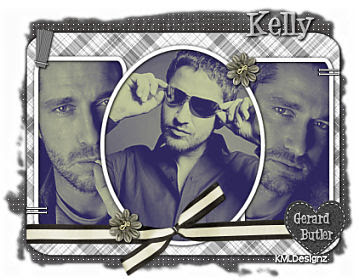
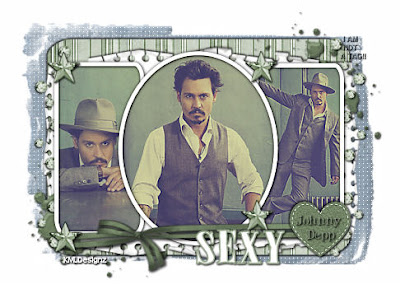
Other samples of this tutorial :)


Wednesday, October 22, 2008

Scrap Tutorial

Scrap Tutorial Written By KMLDesignz
October 22nd 2008


Supplies Needed
Scrap elements of choice or ones in the supplies
1 Graphic of Choice or one in supplies
Font Of Choice
Mask in the supplies
Plugin Xenoflex 1.0 Crumble
Filter Factory J Plugin Toners
You can get those here, go to F and then X
Supplies Here


Let's Get Started
Open up the supplies and minimize them in psp

Open up a new image 600*400, you can resize later if you want.
Open up the image of choice and copy and paste as a new layer, resize this to your liking, then use the unsharpen mask with these settings
Radius- 1.00 Strength- 64 Clipping- 4.00
Do this at least 2 times to your image.
I then added the Filter Factory Toners to my image with these settings
Red- 19 Blue- 44 Green- 14
I did this like 3 times to make it look cloudy.


Open up the SBS_WPO2_RoundedWhite.png and copy and paste this on your image as a new layer, I resized mine @ 50% smartsize size till it fit nicely around the image your using, then I used the same unsharpen mask settings as before, then I duplicated this layer 2 times merge those layers together, add a drop shadow with these settings

V&H- 1 Opacity- 100 Blur- 3.00 Color- Blk

Then lower this layer to like 76 in the layers.


Open up 1.png and paste as a new layer, resize this layer @ 70% smartsize and sharpen with the same settings as before then use your deform tool so it fits nicely behind your image, now go to your Xenoflex plugin and choose crumble with these settings.

Open up the lliella_JDreams_ribbon1.png and copy and paste on your image as a new layer, I colored mine to match my tag, you can do the same, I then resized it to my liking so it fits on the image, see above for placement. Give this the same drop shadow as before.

Open up the lliella_JDreams_silkflower.png and copy and paste as a new layer, I colored mine to go with my color scheme of the tag I did. You can do the same, then I resized mine @ 40% smartsize 2 times then once at 85% smartsize and used the same unsharpened mask settings as before and same drop shadow. See above sample for placement.

Open up the star tube in the supplies and copy and paste as a new layer. I resized this @ 40% smartsize once, then used the unsharpen mask settings again once. See sample for placement.

Open up the bow in the supplies and copy and paste as a new layer, I colored mine again to match the tag, you can do the same, Resize this once @ 40% smartsize and place in the top right corner of the tag, add the same drop shadow.

Now for my tag I duplicated the flower I used and resized it @ 40% smartsize again to place in the middle of the bow and same sharpen settings, You can leave it as is or do this.

Open up the scrap paper and paste as a new layer on your image, resize this @ 35% smarsize once, then same sharpen, and give it the same drop shadow but then repeat with the V&H with

-1 and place this behind your image, duplicate and then flip and mirro so its on the other side and you have both peeking out some, look at sample for idea.

Open up the lliella_JDreams_beads3.png and copy and paste as a new layer, I colored this to match as well, Resize to your liking, place this behind the note paper, look at the sample for placement, I then duplicated once and mirrored it. Add the same drop shadow to these layers.

Open the treed-icandy-paintblack.png and paste as a new layer, I colored this one to match as well, resize @ 40% smartsize once, sharpen with the same settings, then add the same drop shadow, I placed this above the doodles we just did but behind the note paper. Duplicate so you have two of them and flip then mirror.

Open the Bracket.pspimage and paste as a new layer, Color to match the tag, resize this layer @ 50% smartsize once, sharpen, then add same drop shadow, I placed these behind the note paper but above the doodles we did.

Find your raster 1 layer, it should be blank, flood fill this layer with a color that matches your tag. Open the mask I supplied and apply this to the layer you just filled.
Delete mask raster, then merge group together.
Resize this layer @ 70% smartsize, then take your deform tool and bring it some more to your liking.
Go to effects, texture effects then click on texture and find the texture named Canvas Coarse and apply with these settings
Size- 77% Smoothness- 0 Depth- 1 Ambience- 0 Shininess- 0 Angle- 315 Intensity- 50 and Elevation- 30 color- white, Apply that once.
Apply an inner bevel to this layer with these settings
Add the same drop shadow as before, then switch the 1 with -1
Go back to effects, texture effects, then click on weave. Apply with these settings.
Gap Size- 1 Width- 4 Opacity- 1 Fill gaps, both colors- white
Apply just once.
Now if your graphic was a celebrity, add there name like mine in the sample and give the same drop shadow, if yours isn't a celeb, add which ever you want.

Add your name and any copyright/watermark info and save.

I hope you enjoyed the tutorial.
Another sample with this tutorial

Sunday, October 12, 2008

Frame Scraps Tutorial


Frame Scraps Tutorial
Written By KMLDesignz
October 12th 2008


Supplies Needed
2 Images of Choice
Scrap Kit by Melissa
Called Wishful Thinking
http://sentimentalstyle.blogspot.com/
Template # 55 From Missy
http://divineintentionz.blogspot.com/
Mask of choice or the one I provided.
Filter Factory J Toners Plugin (optional)
Font Of Choice
Supplies
Here


Let's get started
Open up all your supplies your going to use.
Take the tag template and duplicate and close out the original, we won't need it again.
Delete off the copy right layer.
Delete the background frame layers, we won't need those, Close out the rectangle layers and the oval shape, Close out the background layer.
Take your 2 images of choice and open them up, copy one of them.
Take your magic wand and click inside one of your frames, expand by 4.
Paste your image you just copied as a new layer and resize it down some to your liking, depending on the size.
Make sure you sharpen it some, click invert and then delete, and invert again.
Bring this layer below that frame layer so its under the frame, give that frame layer a drop
shadow
V&H= 1 Opacity= 100 Blur= 3.00 Color= BLK
This part is optional, I added the toners to the pic to give it an extra look.
If you do this use these settings
Red= 20 Green= 14 Blue= 44
I did it 3 times or to your liking.
Repeat with the other image you are going to use.
Open back the oval shape layer and select all, float then defloat.
Open up Sstyle_WishfulThinking_Paper_1 or one you like.
I had to resize mine @ 105 smartsize since it was too small for the oval shape, then I sharpened it using the unsharpen mask with these settings
Radius= 1.00 Strength= 64 Clipping= 4
Do that just once, click invert, delete then invert again.
Delete the oval shape layer off.
Add a drop shadow
V&H= 1 Opacity= 100 Blur= 3.00 Color= BLK
Then repeat with the 1's with -1
Open back up the rectangle layers, click on one of them, select all, float, defloat.
Open upSstyle_WishfulThinking_Paper_6 or one you want to use.
I did the same sharpen once.
Invert, then delete and invert again. Select None.
Repeat for the other rectangle layer and add the same drop shadow you did for the oval shape.
Make sure you delete the rectangle layers so there is no gray underneath the scrap paper ones.
Time To Decorate
Open up Sstyle_WishfulThinking_Flower_2 and copy and paste as a new layer on your image, resize it @ 40% smartsize once and use the same sharpen as before, and give a drop shadow of
V&H= 1 Opacity= 100 Blur= 3.00 Color= BLK
Open up Sstyle_WishfulThinking_Flower_4 and repeat the same steps you did for the other flower.. Look at my tag for placement.
Open up Sstyle_WishfulThinking_Bow and copy and paste on your image, Resize this @ 40% smartsize and use the same sharpen as the flowers.
Same drop shadow.
Merge visble all layers except your background layer, Resize this @ 65% smartsize all layers NOT checked. Give it the same sharpen as before.
Open up Sstyle_WishfulThinking_JournalBlock and copy and paste as a new layer, bring this below your merged image.
Give this a drop shadow
V&H= 1 Opacity= 100 Blur= 3.00 Color= BLK
Repeat with -1 Merge visble those 2 together.
Open up Sstyle_WishfulThinking_Paper_2 and copy as a new layer, resize this at 75% smartsize and bring this below your merged image.
Find the mask I provided and apply it to that layer, Click delete mask raster and click yes when the box pops up, then merge group. Duplicate the mask layer once.
Then merge down the duplicated layer with the original mask layer.
Make sure the mask layer is below your merged layer but above the background layer.
Now this next step is depending if you used a celebrity for your graphics or not.
I used the alpha that came with the scrap kit and spelled out the celeb's first name and put it on my image, now you don't have to if you did use a celeb. Its your choice.
Now if you do, I took each letter I was using, copied on a new image 600*400 and resized @ 20% smartsize for each alpha and sharpened them with the unsharpen mask settings.
I then added the same drop shadow.
Then merged visble once I was done and copied it and pasted on my image I am working on.
Then I resized it down a little more so it fits nicely on the tag were you place it, look at mine for an idea.
Add your name and any copyright info and crop the tag some and your done.
I hope you enjoyed the tutorial.


Other samples I did of this tutorial